How to Download Songs From Spotify (2026 Guide)
Downloading songs from Spotify means saving a playlist, album, or podcast directly inside the app so it plays without an internet connection. It’s a Premium-only feature built for offline listening — flights, subways, gyms, anywhere the signal drops. The files stay locked inside Spotify’s own format; they don’t become regular MP3s sitting in your phone’s storage.
How do you actually download songs on Spotify? Open the playlist or album you want, then flip the green Download toggle near the top of the screen. According to Spotify’s own support documentation, individual tracks can’t be downloaded on their own — they have to sit inside a playlist first. That one rule trips up more beginners than anything else in this guide.
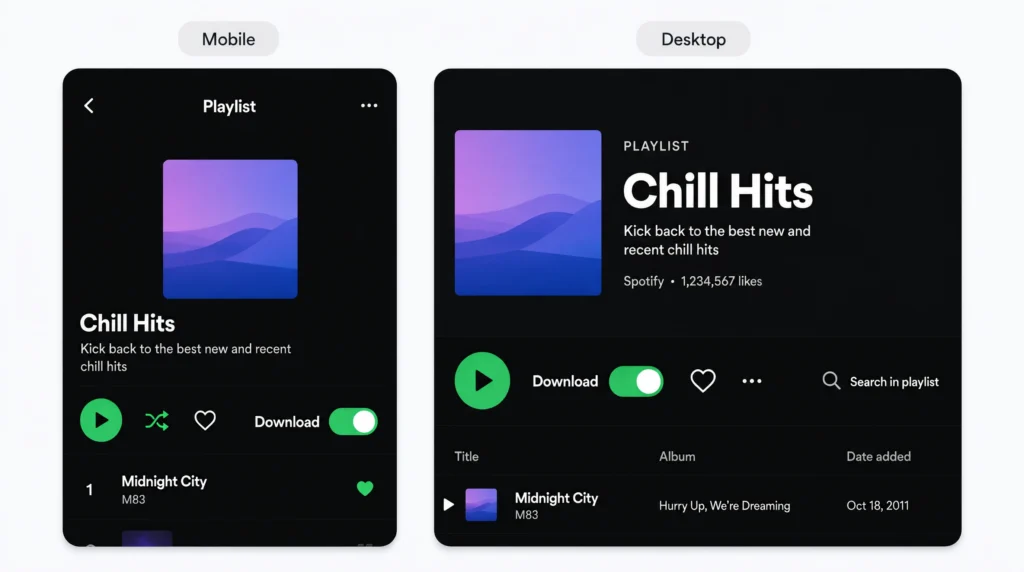
Step-by-Step: Downloading on Mobile and Desktop
To download a playlist on Spotify, follow these steps:
- Open the playlist, album, or podcast you want offline.
- Tap the green Download arrow or toggle.
- Wait for the progress circle to finish loading.
- Turn on Offline Mode in Settings to force offline playback.
On iPhone and Android, the toggle sits directly under the playlist title. On desktop, it’s the same green arrow near the “Play” button, just slightly smaller. Once it turns solid green, the download is done.
Quick note: you’ll need to reconnect to the internet at least once every 30 days, or Spotify quietly revokes playback on downloaded content. Most users never see this coming — they just notice their offline library “stopped working” a month later and assume it’s a bug.
Free vs Premium: What You Can Actually Download
Here’s the thing: Spotify Free doesn’t let you download songs at all. Not one. Free accounts can only save podcast episodes offline; everything else streams live, ads included.
Quick Comparison
| Option | Best For | Key Benefit | Limitation |
|---|---|---|---|
| Spotify Free | Casual listeners | No cost, podcast downloads only | No song/playlist downloads |
| Spotify Premium | Regular offline listeners | Full playlist/album downloads, ad-free | Files locked to Spotify app, subscription required |
| Third-party converters (e.g., NoteBurner, Sidify) | Users wanting permanent MP3 files | Converts to standard formats you can keep | Against Spotify’s Terms of Service, paid software |
Spotify Premium vs Free comes down to one thing: ownership of access, not ownership of files. Premium gets you unlimited offline playlists as long as you keep paying. Free gets you nothing offline except podcasts.
I’ve seen some guides claim Premium downloads “never expire.” That’s not quite right — my read, based on Spotify’s own documentation, is that they expire the moment you go 30 days without reconnecting, subscription or not.
Storage Limits Nobody Mentions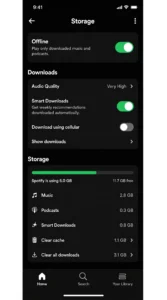
Premium subscribers can download up to 10,000 songs per device, across a maximum of five devices — 50,000 tracks total if you spread them out. That’s the official ceiling, and almost no beginner guide mentions it until someone hits it and can’t figure out why new downloads silently fail.
What most guides skip is the file format itself. Downloaded Spotify tracks aren’t MP3s — they’re encrypted files playable only inside the Spotify app. Cancel your subscription, and every downloaded song disappears with it, even the ones you “kept” for months.
Common Download Problems and Fixes
A few issues account for most support searches:
- Downloads stuck at 0%: Usually a Wi-Fi restriction. Spotify defaults to Wi-Fi-only downloads to save mobile data — switch this in Settings > Data Saving.
- Songs greyed out after a month: The 30-day offline expiry kicked in. Reconnect to the internet with the app open to refresh them.
- “Storage full” errors: Each track averages 3-5MB at standard quality, more at “Very High.” Trim old playlists or lower audio quality in Settings.
Some readers assume clearing the app cache fixes downloads that won’t play. It sometimes helps, but the more common cause is that 30-day rule, and clearing cache alone won’t reset it.
Can You Download Spotify Songs Without Premium?
Third-party converter tools exist for people who want standard MP3 files instead of Spotify’s locked format, or who don’t want a Premium subscription at all. Using them sits outside Spotify’s Terms of Service, and quality or reliability varies a lot between tools. This guide won’t walk through installing or running that kind of software — it covers Spotify’s own official download feature only, which is the method that keeps your account safe and your music library consistent.
Some readers will push back here and say a paid converter is worth it for permanent files you actually own. That’s a fair position if long-term ownership matters more to you than convenience. For most casual listeners, though, the official Premium download feature covers the actual use case — offline listening on a flight or commute — without any account risk.
Quick Q&A
Q: What’s the best way to download songs from Spotify?
A: Use Spotify Premium’s built-in Download toggle on any playlist or album. It’s the only method that doesn’t violate Spotify’s terms.
Q: How do I download a single song on Spotify?
A: You can’t download one track alone. Add it to a playlist first, then download that playlist.
Q: Should I use Offline Mode or just download songs?
A: Do both. Download the content first, then enable Offline Mode to stop Spotify from trying to stream anything else.
Q: Why did my downloaded Spotify songs disappear?
A: You likely went over 30 days without connecting to the internet, or your Premium subscription lapsed.
Q: When should I turn off Wi-Fi-only downloads?
A: Only if you’re on an unlimited data plan and need to download a large playlist away from Wi-Fi.
This guide covers Spotify’s official download and offline-listening feature on iPhone, Android, and desktop. It doesn’t cover third-party conversion software, DRM removal tools, or region-specific pricing outside standard US plans.
Spotify Support — “Listen Offline” → proves official download steps and 30-day rule